

It might seem like you can’t walk down the street without hearing about AI and how it’s going to change the future of work. There is obviously some truth to that because it already has. Over 800 million people use ChatGPT every week, and that’s just ChatGPT! When you account for system-level AI tools like Apple Intelligence being rolled out to over a billion users, it becomes apparent very quickly that these tools are going to become larger and larger parts of how we live, work and play.
At DR, we take a deliberate approach to using AI. Every tool is vetted by our in-house AI Captains for cost, safety and real-world fit. We maintain a public AI policy that we update regularly as new tools and standards emerge.
This structure helps us stay on the cutting edge while making sure our AI use aligns with our ethics and workflows. And it’s working. Our team is more efficient (and more creative) by using AI in measured, intentional ways that keep the human side of our work front and center.
With that foundation in place, let’s get specific. Here are the four AI tools that have become essential parts of our marketing operations, along with how and why they actually work for our team.
ChatGPT — The Ideation Partner
It feels like people are turning to ChatGPT for everything recently, but at Digital Relativity, we have prioritized using ChatGPT to amplify our team’s abilities, not replace them. Instead of viewing ChatGPT as a tool to replace human creativity or insight, our adoption of ChatGPT has focused on using it to help us work faster and smarter, extending our own abilities by making better use of our time and resources.
The Basics of ChatGPT
In retrospect, it’s almost funny how simple the interface for ChatGPT is. It’s literally just a chat window, like you’d see in Messages or Facebook. Have you ever texted someone? Then you have all of the technical ability that you need to start using ChatGPT right now. OpenAI has added features and tools around the basic chat interface for ChatGPT, but the real heart of it remains unchanged: a text box that replies to you. You can give it a PDF and have it summarize it, or ask it to remove a tree from a photo, but the basics are the same: you’re saying something with words (either written or spoken) and it is replying, be it with words, photos, videos, graphs or even code.
How We Use ChatGPT
One of the main use cases we find for ChatGPT is drafting very rough outlines of things like ad copy, newsletters and other short-form content based on campaign direction, historical data and best practices. These are always just outlines, freeing our team up to focus on the actual writing and content creation.
ChatGPT is also great for summarization and analysis. We often receive long, complex documents, and having the ability to pull specific information from a document with a clear citation can save an enormous amount of time. ChatGPT’s ability to work with images also makes it a great tool for drafting alt text for images, helping make websites more accessible and SEO-friendly without requiring additional internal resources for drafting alt text.
ChatGPT Best Practices
I personally find that I get my best results out of ChatGPT when I ask it to “do” something, rather than “know” something. I’ve found that ChatGPT excels when provided with existing content, such as a blog post or a travel guide, to frame its output. This approach, giving it input to work with, is far more effective than expecting it to generate accurate, real-world information “from nothing.” This distinction is important in my experience. You will almost always get better results when you provide more context and content (like a travel guide) than you will by just saying “Give me an email newsletter about these 5 lodging properties,” and a list of names.
For longer projects, like this blog post, my workflow usually involves a back-and-forth with ChatGPT on structure (number of sections, length of each, etc.) first. After that, I write each section and pass my own writing back to ChatGPT for edits and proofreading. It’s still entirely my voice and my content, but I effectively have an editor and brainstorming partner sitting next to me while I work.
Providing context in the form of a persona can also yield better results. For example, instead of “write a headline,” try “Act as a senior copywriter. Write five compelling Facebook ad headlines for a luxury real estate business.” That approach keeps you in the editor’s seat while giving ChatGPT a clear role and direction, leading to sharper, more relevant results.
Apple Intelligence — The Invisible Assistant
If you read the news, it’s easy to conclude that Apple is either late to the AI party or hasn’t arrived at all yet. I think this misses the forest for the trees in some respects. As I mentioned in a prior post about using AI models on older Macs, Apple has been working (and shipping) in the deep learning and machine learning spaces for years, long before the modern incarnation of what we all think of as artificial intelligence. While it might not be generative in the sense that we normally think of it, Apple has been quietly sprinkling AI features throughout the platforms we all use every day for years.
The Basics of Apple Intelligence
While some of the biggest features of Apple Intelligence are still MIA (and maybe powered by Gemini), there are still plenty of features available right now. Do you love automating tasks with Shortcuts? Apple Intelligence can help with that. Overwhelmed by notifications? Apple Intelligence can summarize them; it might make some up too. Do you need some workout motivation? Check out Workout Buddy, powered by Apple Intelligence.
It’s easy to feel like Apple has missed the boat here because these tools aren’t a text box like ChatGPT or Claude, but when you know where to look, you can’t pick up your phone without touching Apple Intelligence.
Apple Intelligence Best Practices
Now that we’ve covered what Apple Intelligence is, let’s look at how our team is actually putting it to work, and a few tips for making the most of it in your own workflows.
For the sake of time, I’m going to limit this list to the tools that our team is using most.
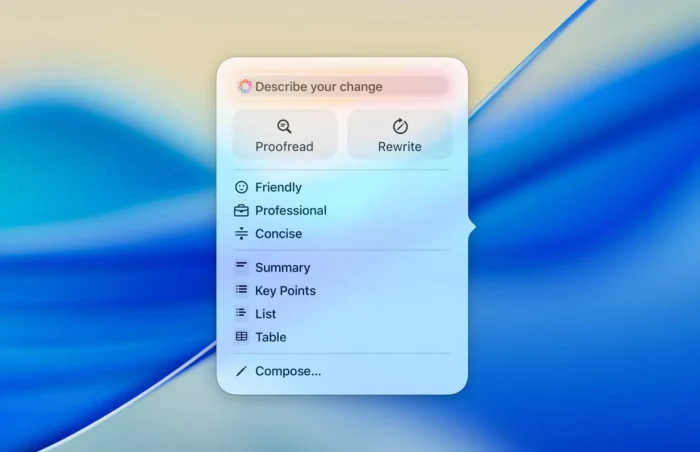
Apple Intelligence Writing Tools
Apple’s Writing Tools are basic editing and proofreading tools baked into all of Apple’s devices. You can select any text in any app and run it through these handy tools. I find these especially useful when dealing with large amounts of free-form text in documents and emails. If you have several paragraphs of text providing feedback about a project, it’s awesome to be able to select all of the text and ask for a bullet list or summary.
In addition to distillation and summary, Apple’s writing tools are great for editing. There are some presets (Friendly, Professional, Concise, Summarize, Proofread), but you can also provide more open-ended direction. If that sounds like a slimmed-down version of ChatGPT, you’re getting the idea! The point here is that these tools are baked into the actual device you’re using. No opening an app, no breaking your flow. It’s a part of the system, just like the keyboard itself.
Apple Intelligence Photos Tools
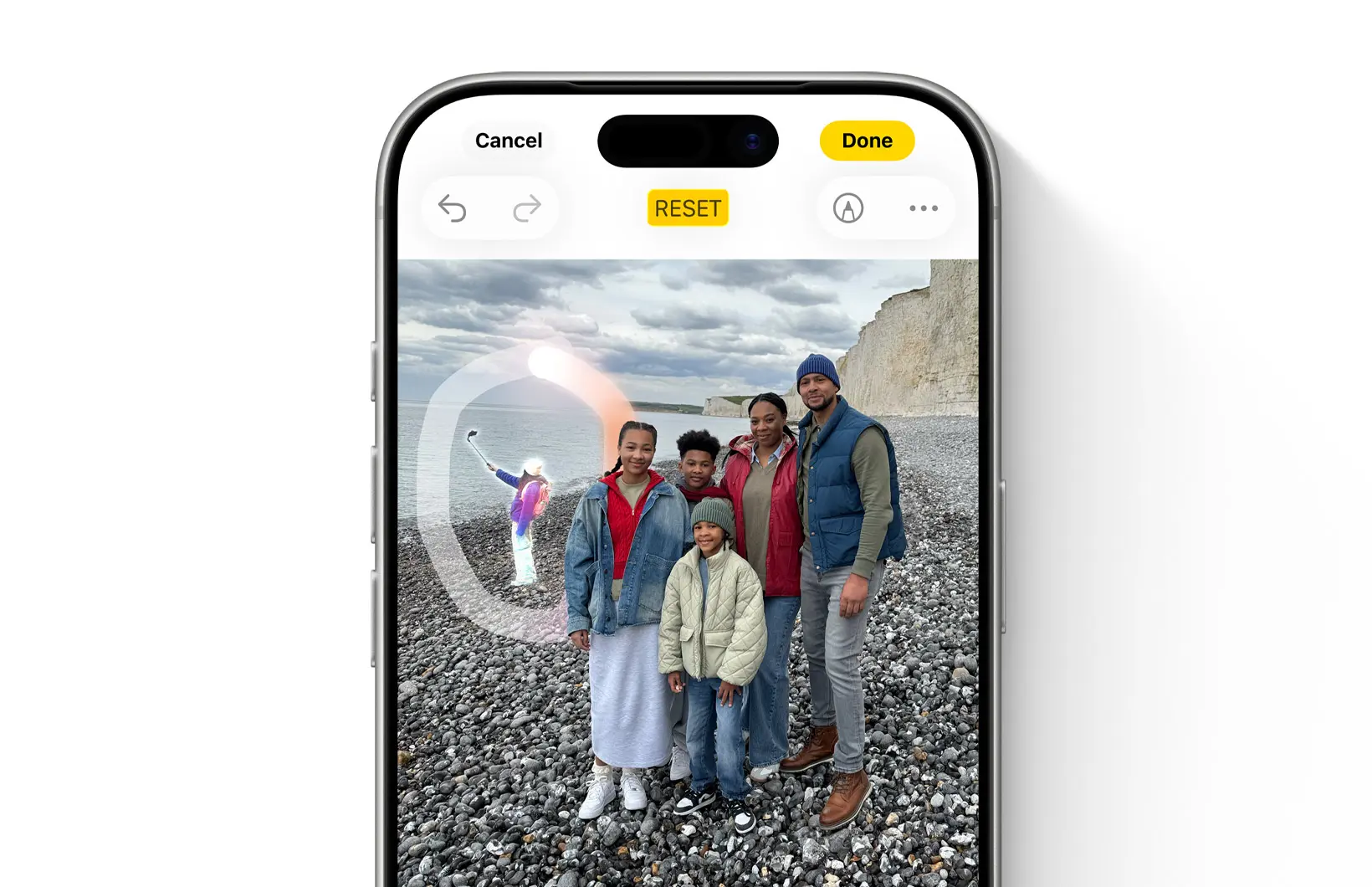
While we do not use these much internally, we see a lot of folks we work with adopting these when gathering assets. The ability to remove objects and people is especially handy. Specifically, I hear from people who are gathering photos using their iPhones and then using Apple Intelligence to remove unwanted people and objects (even their own reflections from mirrors!) from their shots.
Visual Intelligence is also pretty cool here, especially for folks working with assets that they may not have captured. Visual Intelligence uses AI to identify objects of interest with surprising granularity. Rather than just say “This is a flower,” it can tell you the specific kind. I tested this on some flowers in a Charleston coffee shop a few years ago because I thought the flowers were so striking, and within seconds, I knew the name and basic details about them.
I want to include background removal here as a bonus. This is definitely more consumer-grade than the tools that exist in Photoshop or Figma, but I am constantly reaching for this tool to remove basic backgrounds from assets to try and avoid bugging our creative team. It has no settings, so you get what you get, but I get usable assets the majority of the time that I use it. If you can tolerate the analogy, I would compare Apple Intelligence to salt, while ChatGPT is a steak or a cheeseburger. A steak is an entire dish that requires you to choose to eat it instead of something else. You are eating steak instead of another dish. Salt is not an entire dish, but it is everywhere and you notice when it’s not there.
Notebook LM — Research Without the Chaos
For a while, it felt like Google’s lack of a chatbot (remember Bard?) meant that it was woefully behind ChatGPT. Set aside the fact that Google invented transformers, the T in ChatGPT, in 2017, and the fact that Google’s CEO has been referring to them as an AI-first company since 2016.
While Google hasn’t taken the same route that Apple did and foregone the chatbot paradigm entirely, it has definitely taken the “salt” approach that I described earlier and strapped a rocket to it. Gemini, the name of Google’s primary consumer-facing AI model and chatbot, can be found everywhere in Google’s vast product catalog.
Google’s adoption of AI is not only deep but clearly broad, too. NotebookLM might be the perfect poster child for this effort.
The Basics of NotebookLM

Part of what makes NotebookLM so interesting is that there is nothing quite like it. If you’ve never used it, having it described can sound like a weird chatbot for students.
The very basic version is that it is a tool for organizing large (even vast) amounts of information into “notebooks” that you can then interact with using AI. You can ask the notebook questions and generate summaries, FAQs and quizzes. A college student that I know is uploading hours of lectures to NotebookLM and then using the AI tools to generate summaries and quizzes.
One of the coolest features, though, is the “audio overviews,” which are basically podcasts with AI voices. If the idea of listening to an AI podcast sounds like nails on a chalkboard, I would strongly recommend generating one and checking it out. The voices are surprisingly lifelike, and as mentioned earlier, a notebook can contain dozens or even hundreds of documents.
I really want to stress this because it blows some people away the first time they hear it: those people do not exist. The voices are not “real” in the way that my voice or your voice is. The entirety of that audio is generated by NotebookLM.
How We Use NotebookLM
At Digital Relativity, we use NotebookLM to accelerate research by summarizing, organizing and analyzing documents we already have.
Our team is always learning (it’s kind of our thing) and as a result, I am constantly buying web development books for our team. It’s easy to end up with a “to read” pile that is larger than your “have read” pile and get no use out of the books at all! Once we read a book, though, we have a “web dev bot” notebook where we will drop in books so we can reference them later.
When we start a new project, it’s not uncommon for one of us to throw our original proposal, our meeting notes, transcripts and any relevant documentation into a notebook and share it with the team who will be working on the project.
NotebookLM Best Practices
There are a bunch of options for things you can put into NotebookLM as sources. You can paste in plain text but also link to YouTube videos, Google Docs, web pages and even MP3 recordings and PDFs. The thing to remember about these is that they all boil down to text. When you put a YouTube video in there, NotebookLM can’t “see” the video because it just uses the transcript. The same is true of PDFs, where NotebookLM will pull the text content from the document but will likely struggle with complex graphics or diagrams.
Like a real notebook, NotebookLM works best with text, even if that text starts as a video or audio.
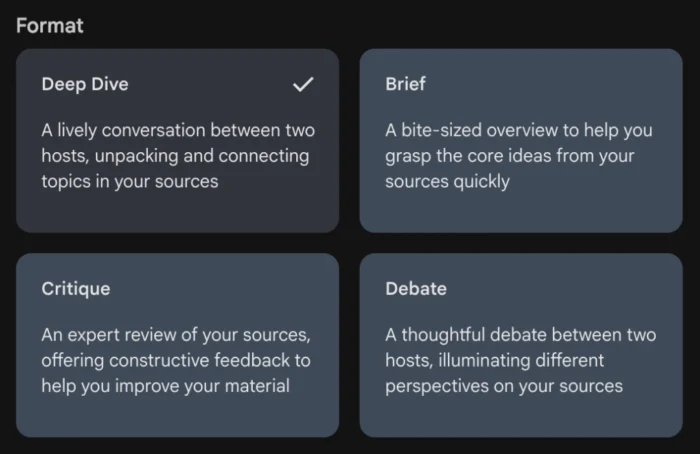
Once you have your sources in there, it’s also important to adjust the tone and settings for your use case. Not only can you tweak the “chat” settings for the conversational aspect of the notebook, but you can also adjust the settings on the audio overviews to tweak the tone of the voices.
Fireflies — The Meeting Memory Keeper
Sticking with our “AI as more than just a chatbot” theme from the last two items, Fireflies is another one of those “How did we ever get by without this?” products.
If you’ve been on a Zoom call (or Teams, heaven forbid. *shudder*) in the last year or so, you have almost certainly encountered an AI notetaker of some kind. The concept is simple: this AI tool will sit in on the meeting, just like a person would. They will record the audio (and in some cases, the video) of the meeting and then use that to generate things like action items, follow-up questions, transcripts and more.
The Basics of Fireflies
These notetakers sound pretty straightforward on the surface, but I think Fireflies is one of many tips on the very large iceberg of AI, a completely unparalleled enabler of accessibility on a scale that we’ve never seen before.
People who may have trouble physically taking notes have access to them now, captured more accurately and made searchable than ever before.
People who may have issues multitasking or who struggle with auditory processing no longer have to choose between taking notes or being “present” for the meeting.
People who struggle with scheduling because of caregiving or medical needs now have actionable distillations of meetings that otherwise would have just been relayed secondhand.
How We Use Fireflies
At Digital Relativity, we use Fireflies.ai to enhance how we capture and revisit important conversations. Having a tool to automatically capture and transcribe meetings across Zoom, Teams, Google Meet and more is a massive productivity boost. It’s made even better for our team by being able to upload meetings captured elsewhere. It’s not uncommon to see someone on the DR team use Voice Memos during a “real” meeting to capture the audio and drop it in Fireflies once the meeting ends.
For me personally, I have completely stopped taking notes in meetings. And I was a paper person! I have notebooks dating all the way back to 2011, showing what I was doing every day during that first year of DR.
(Hint: It was a lot of sushi and QR codes)
The loss of notebooks doesn’t mean I can’t find these details anymore, either, even months later. The archival search in Fireflies is super handy, and it’s powered by those transcripts of each individual meeting. Just last night, I was able to search almost every meeting I’ve been in for the last year for a specific web development book that I recommended six months ago in a meeting.
Fireflies Best Practices
As with all of these tools, they’re as good as what you put into them. If you don’t regularly invite Fireflies to meetings or upload meetings to it that were recorded elsewhere, it’s not going to be a useful archive.
On the flip side, a lot of organizations prefer not to allow AI notetakers into meetings. That’s fine, and Fireflies makes it super simple to invite it to a meeting after the meeting starts or, alternatively, to remove it.
Beyond Tools, Toward Strategy
I hope you’ve found some useful tidbits in this list that sound like they would help you with your own work. People are clearly making heavy use of these tools every day, and I think for a lot of people, they’re just scratching the surface.
Maybe even more than the useful applications, though, I hope you’ve seen the human-centric theme throughout these explanations. All of these tools elevate our abilities and capacities, helping free up time for deep focus, strategy and the meaningful work that can only come from a creative, experienced team like ours.